Trailseek
Drawing
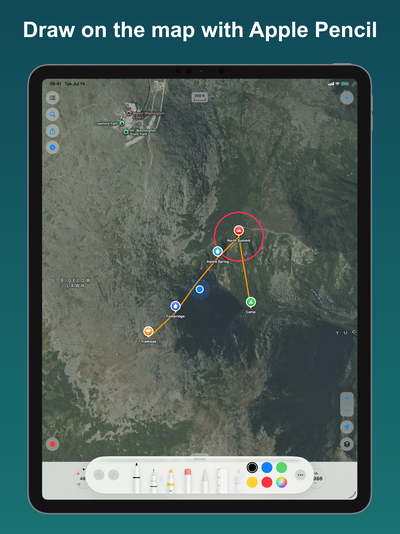
Draw on the map with an Apple Pencil on iPad, or a finger on iPhone.
Draw
Tap the draw button to start. Pick the pen, marker, or pencil, choose a color, and draw. With Apple Pencil, pressure sets the stroke width. You can undo, and tap the button again to finish and save.
The map locks while you draw, so your strokes stay in place. Drag with two fingers to pan the map, and one finger keeps drawing.
Drawings are saved as geo-anchored strokes, so they pan, zoom, and rotate with the map and stay sharp at any scale.
Manage
Open Drawings from the lists menu. Tap a drawing to open it, then share it, show it on the map, rename it, or delete it. Swipe a row to show it on the map or delete it, and tap the eye to hide or show a drawing. To keep editing a drawing, tap it on the map.
Share
Open a drawing and share it as an .trailseekdrawing file through AirDrop or Files. It imports on another device already anchored to the right place.